How to Use Auto Drive in GTA 6 on PS5 and Xbox
- Last Updated: 22nd November, 2026
- 4 Min Read
- 2 Views


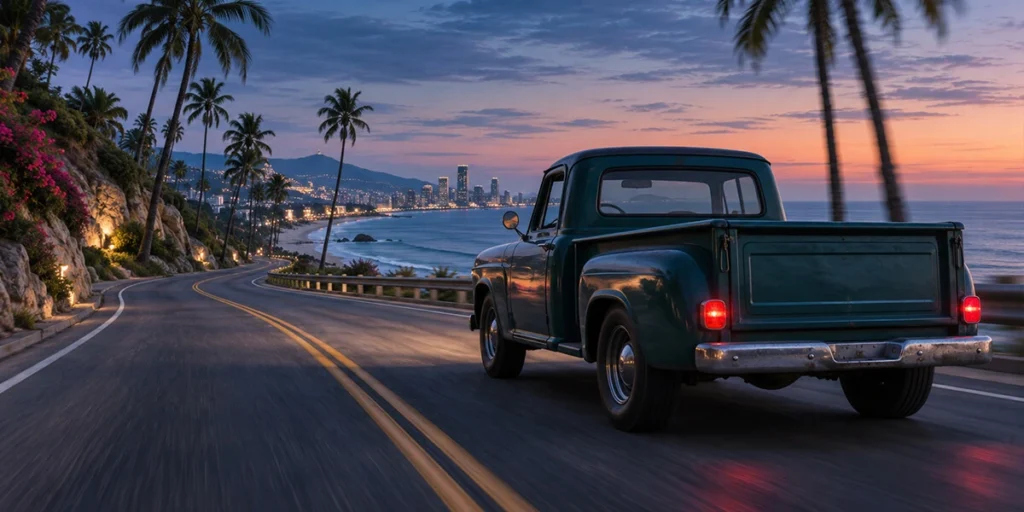
To use Auto Drive in GTA 6, set a destination on the map, start driving, and switch to the cinematic camera. When Enable Auto Drive appears, hold Circle on PS5 or B on Xbox Series X|S. You can then use the triggers to choose from three speeds while the vehicle follows the route.
The detail that’s easiest to miss is that the option appears while you’re driving in cinematic view with a destination set. If you’re sitting in a parked car and looking for a permanent button on the HUD, start moving first. This guide shows the full sequence, how to take over again, and what to check when the prompt is missing.
| Action | PS5 | Xbox Series X|S |
| Enable Auto Drive | Hold Circle when prompted | Hold B when prompted |
| Change the speed setting | L2 / R2 | LT / RT |
| Take over while keeping cinematic view | Use Circle at the Disable Auto Drive prompt | Use B at the Disable Auto Drive prompt |
| Exit cinematic view and end Auto Drive | Hold Down on the D-pad | Hold Down on the D-pad |
The PS5 prompts are documented in published gameplay recordings. The Xbox equivalents are reported in launch guides. Follow the button shown on your HUD if it differs from the table.
Auto Drive handles the journey towards your selected destination while the cinematic camera changes angles. The trip still happens in real time, so it works well for a scenic stretch when you want to watch the surroundings. You can choose between Speed 1, Speed 2, and Speed 3 with the trigger buttons while it’s active.
For a quick test, pick a stretch of waterfront road in Vice City or a short drive towards the Leonida Keys. Start on a clear road, watch the vehicle make one or two turns, then take control again before your final turn. That tests the three things you’ll use most often: engaging Auto Drive, changing speed, and switching back to manual driving.
To change when the game allows Auto Drive, open Pause Menu → Settings → Gameplay → Accessibility → Auto Drive. The setting has two choices: Restricted and Unrestricted.
Restricted limits the feature to calmer driving situations, such as ordinary travel between destinations. Unrestricted allows it in more situations, including some pursuits. The setting changes when you can use the feature. The driving AI can still run into obstacles or other vehicles, so take over if the route gets blocked.
| What you see | What to try |
| You’re driving, but no prompt appears | Reopen the map and confirm you’ve set an active destination. |
| You’ve set a destination, but you’re still parked | Start moving along the road, then look for the cinematic prompt. |
| You’re still in the standard driving view | Switch to the cinematic camera and look for Enable Auto Drive. |
| The prompt works on a quiet road but disappears during a pursuit | Check whether Auto Drive is set to Restricted and try again once the pursuit ends. |
| The vehicle slows down or gets stuck | Disable Auto Drive, get around the obstacle manually, and try again on a clear stretch of road. |
If you’re unsure what’s causing the problem, use a short road trip with a fresh waypoint. Starting with a simple route helps you check each step before trying the feature during a mission or in heavier traffic.
You activate the cinematic camera first, then use Enable Auto Drive. Look for the prompt to change to Disable Auto Drive to confirm the game has taken over.
Launch guides report that Auto Drive can work in boats, although it can struggle around shorelines. If you’re learning the controls, a short road trip in a car is the simpler place to start.
Use the Disable Auto Drive prompt. If you also want your regular driving view back, hold Down on the D-pad to leave the cinematic camera and end Auto Drive.
The easiest way to learn how to auto drive in GTA 6 is to try it on a short trip. Mark a destination, get the vehicle moving, enter cinematic view, and hold Circle on PS5 or B on Xbox when the prompt appears. Try changing the speed once and taking control again before you arrive. Then you’ll know how to start and stop the feature before using it on a longer drive across Leonida.
If the prompt is missing, check the waypoint, vehicle movement, and camera first. If it only disappears during a pursuit, check the Restricted setting under Gameplay → Accessibility.
[ 0 votes, Avg: 0 ]